Managing Photo Metadata with ExifTool
Introduction
I like keeping things organized, and my photo collection and backups are no exception. To achieve this goal, processing photo metadata (or meta information) is a good skill to have. There is a great piece of software that can be used for editing that meta information, and it’s called ExifTool. In this post, I’m going to list my most common use cases of ExifTool together with the command snippets.
ExifTool Installation
Follow instructions under this link: https://exiftool.org/install.html
Use Cases
Rename Photos to Include Creation Date
Photos taken by a smartphone are always nicely organized by the OS built-in photo apps.
However, when you back up your photos on your computer or external media, and when you want to browse them in the computer file explorer, you end up with a lot of files with meaningless names. For example, photos taken with an iPhone are named “IMG_0123”, “IMG_6789”, and so on. File managers across different systems can sort by file name, file format, or file creation date (e.g. the date when you copied the file to your computer), but not by the date when the photo was taken, and this is what we need to effectively navigate through the photos when they are sorted chronologically.
What I like to use, not only for pictures, is this format: YYYY-MM-DD. With
this format, optionally followed by 24-hour time (YYY-MM-DD_HH:MM), it is
super easy to find photos you’re looking for.
The command I use to include the creation date in the photo file name:
# Run in the directory with all the photo files to rename:
exiftool -d '%Y-%m-%d_%H:%M_%%03.c.%%e' '-filename<CreateDate' .
Example:
$ ls -1
IMG_0001.JPEG
IMG_0002.JPEG
IMG_0003.JPEG
$ exiftool -d '%Y-%m-%d_%H:%M_%%03.c.%%e' '-filename<CreateDate' .
    1 directories scanned
    3 image files updated
$ ls -1
2023-04-20_18:36_000.JPEG
2023-11-27_21:58_000.JPEG
2024-12-02_17:50_000.JPEG
More info on this command can be found in this Stack Exchange thread.
Removing Metadata
Useful when you want to share a picture online, but you don’t necessarily want to share the device model that you used to take that picture, or the time, or geolocation.
Before Deleting
Existing example photo metadata:
# Print some metadata using exiftool
$ exiftool IMG_0002.JPEG | grep "Date/Time Original"
Date/Time Original : 2023:11:27 21:58:29
Date/Time Original : 2023:11:27 21:58:29.771+01:00
$ exiftool IMG_0002.JPEG | grep "GPS Position"
GPS Position : 69 deg 52' 10.06" N, 20 deg 4' 10.85" E
$ exiftool IMG_0002.JPEG | grep "Camera Model"
Camera Model Name : iPhone 12 mini
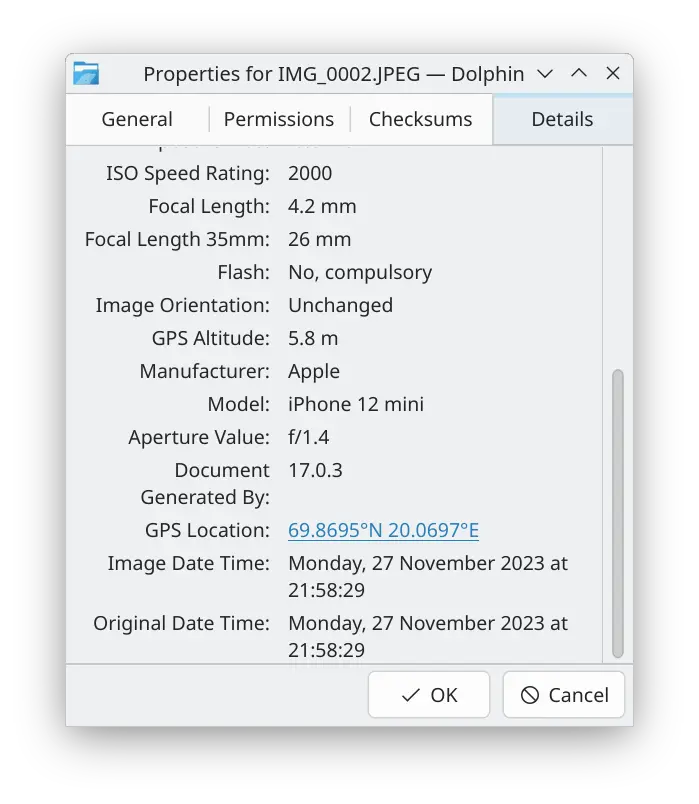
We can see the same metadata in the File Manager GUI:
Command to Delete Metadata
Here’s the basic command. Aside from removing metadata, this command creates a backup of the original file. This behavior can be changed by tweaking some options. More details are in the ExifTool manual.
$ exiftool -all= IMG_0002.JPEG
Warning: ICC_Profile deleted. Image colors may be affected - IMG_0002.JPEG
1 image files updated
After Deleting
As we can see, the file under the original name doesn’t
have metadata - the exiftool command output is empty.
$ ls -1
IMG_0002.JPEG
IMG_0002.JPEG_original
$ exiftool IMG_0002.JPEG | grep "Date/Time Original"
$ exiftool IMG_0002.JPEG | grep "GPS Position"
$ exiftool IMG_0002.JPEG | grep "Camera Model"
In the File Manager “Details” tab, all metadata is gone as well: